
More examples of using Batch Rename RegEx in Bridge using Regular Expressions…
1. Find year/month in yyyy-mm format at the beginning of a filename:
^[0-9]{4}-[0-1][0-9]-
(Remove the caret symbol ‘^‘ if you’re searching for it anywhere in the filename)
2. Use brackets to group the filenames into separate chunks for renaming:
Each pair of brackets creates a new numbered “backreference” that you can use in the new name. Here’s a really simple example…
Here I’m wanting to replace any 3 characters that appear in-between “hello-” and “-friend” with “new”…
Current name: hello-old-friend.jpg
Find: (hello-)(.{3})(-friend)
Replace: $1new$3
Result: hello-new-friend.jpg
Above we’ve set three groups using three pairs of brackets. The first group becomes $1, the second $2… you get the picture. Obviously this isn’t so useful as it’s so specific it would only work on one file. For this to work on many files you’d use a wildcard ‘(.*)‘ in the find box as below…
3. Split file name at a marker (remove all characters before a set unique/special character)
Example – have to supply images to devs named only by numerical ID (don’t ask) but want to keep a descriptive name on the PSD.
So named the PSD something like this: “My-nice-name#12345.psd” – need to deliver “12345.jpg”.
NB this only works if the separating character (#) that splits the two parts of the name only ever appears as the separator.
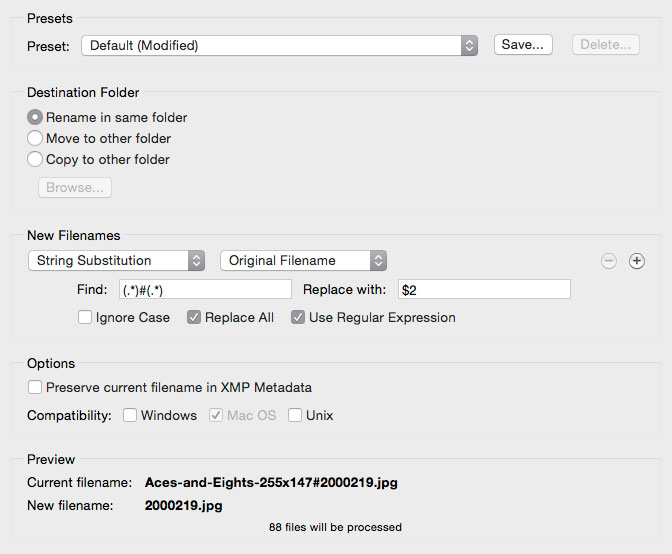
Saved for web as “My-nice-name#12345.jpg” then run through Bridge renaming with the following RegEx setup:
Find: (.*)#(.*)
Replace: $2
See also cheatography.com
Last updated on 22nd April 2020
Leave a Reply